The installer interface is bilingual (Chinese and English). The button names below use its English labels.
Turn off all antivirus software before installing.
The scripts used to add drivers to PE and to add a boot entry to the system, as well as the PE startup scripts extracted when drivers are added, all run with high privileges. If antivirus software stays on, PE will not work properly after it starts, and the installer may be wrongly stopped by the antivirus software, which can damage the system boot.
Use Feedback BUG in the top-right corner to report a problem.
The progress of each task is shown in the Progress bar at the bottom. Do not close the installer or restart the PC until it finishes. Restarting the PC or force-closing the installer during a task may corrupt the system boot configuration and the PE files. If PE needs drivers, add them on the Add Drivers tab first, then carry out the other tasks.
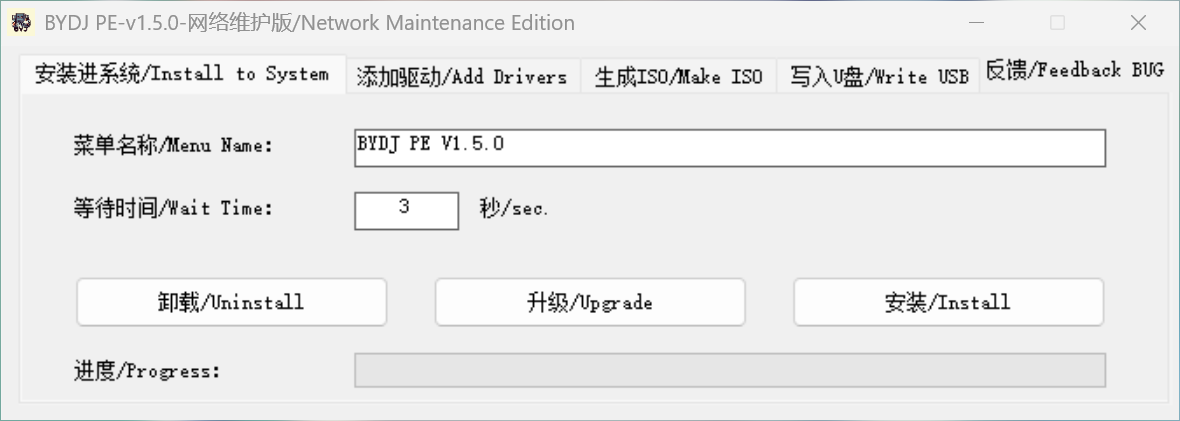
Install to System
Installs PE to the C: drive and adds a boot entry.
Menu Name: the name shown in the boot menu. It defaults to the current PE version and can be changed.
Wait Time: how many seconds the boot menu waits at startup. The default is 3 seconds.
Install: click it when you are ready and wait for the progress bar to finish. Restart and choose the entry in the boot menu to start PE.
Upgrade: if an older BYDJ PE is already installed, click it to update to the current version.
Uninstall: removes the installed PE and its boot entry.
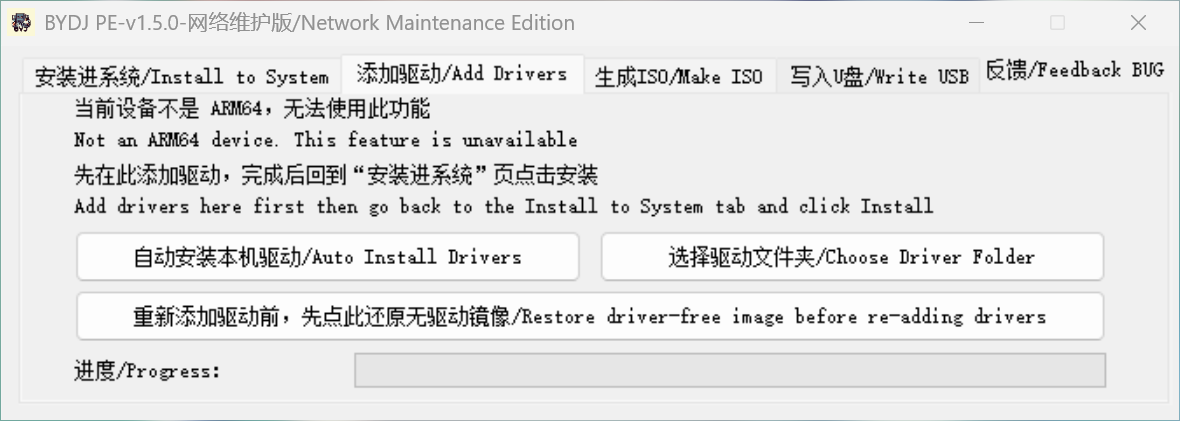
Add Drivers
Adds drivers to PE so it recognizes the hardware of your device. Adding drivers is only available on ARM64 devices.
Auto Install Drivers: extracts the drivers of the current PC and adds them to PE.
Choose Driver Folder: select a folder that contains driver files and add those drivers to PE.
Restore driver-free image before re-adding drivers: when you need to add drivers again, click this first to return PE to its driver-free state.
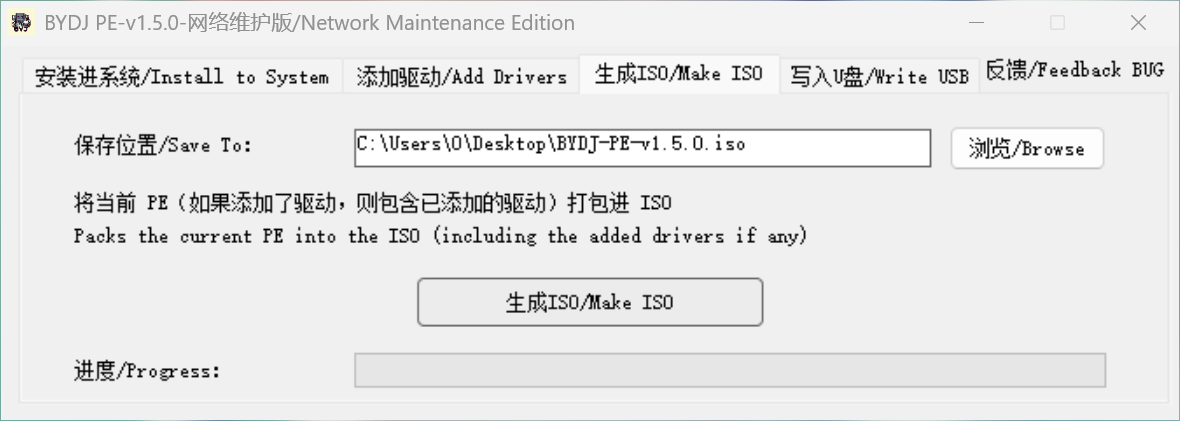
Any drivers you have added are included in the ISO.
Save To: the ISO is saved to the desktop by default. Click Browse to change the location and file name.
Make ISO: click it to start, and wait for the progress bar to finish.
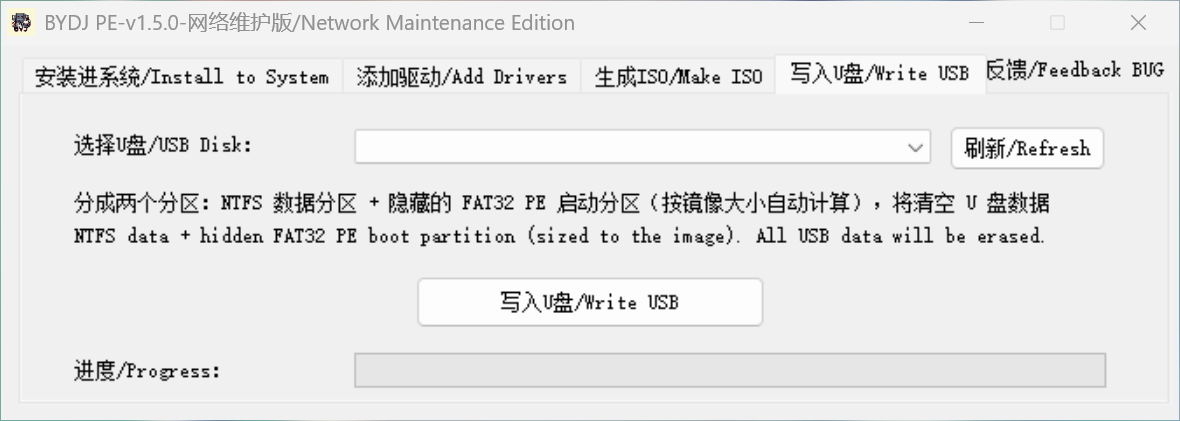
Write USB
Installs PE to a USB flash drive or external hard drive to create a bootable PE drive. Any drivers you have added are also included in the PE written to the drive.
USB Disk: choose the target disk from the list. After plugging in a new disk, click Refresh to update the list.
Write USB: back up your data first and make sure the disk is correct, then click it and wait for the progress bar to finish.